What you will see…… the Home Screen/Dashboard:
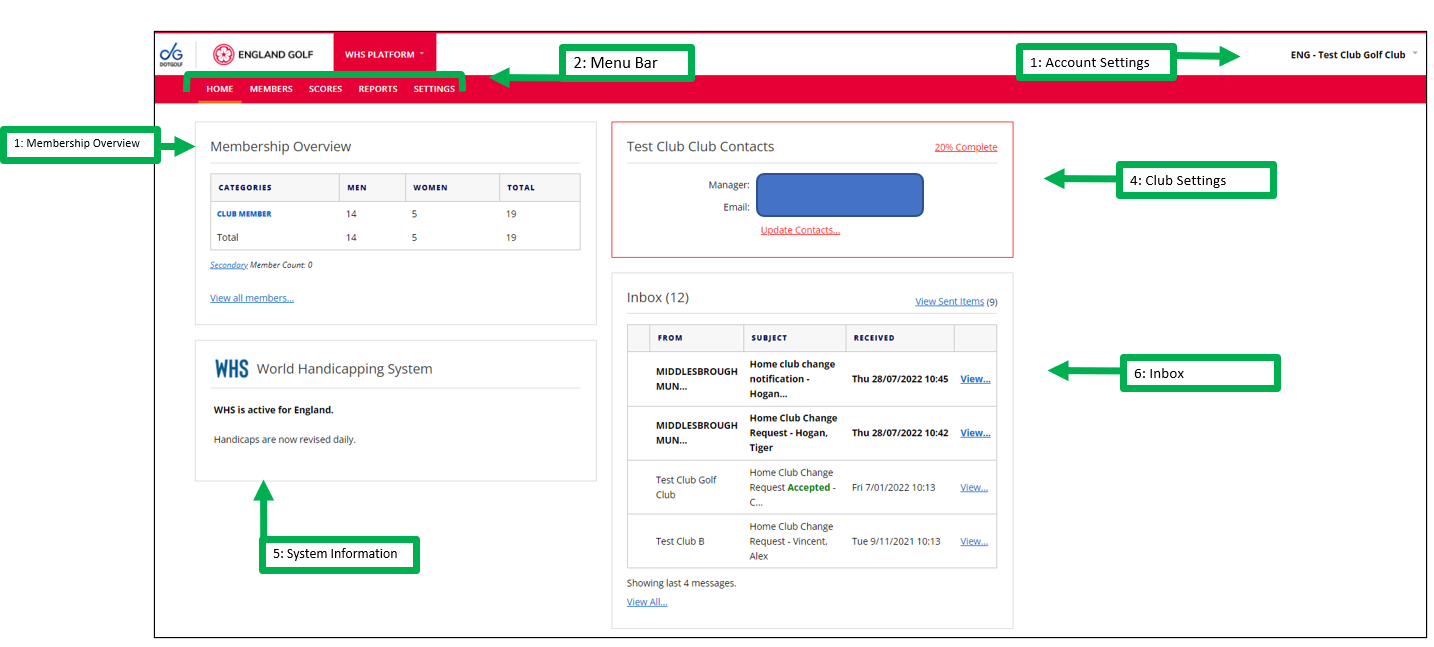
1: Home Page: ‘Account Settings’
User profile details, logout and change password setting option available here via the down arrow and ‘Accounts Settings’ button:
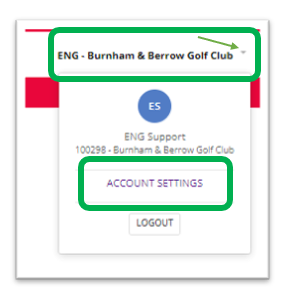
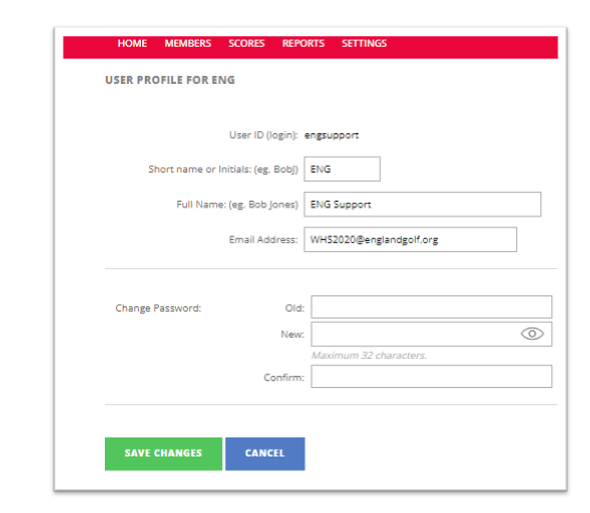
Image 2: What you will see within “Account Settings”
2: Home Page: ‘WHS Platform’ Menu Bar
There are five tabs / menu options which are: home, scores, members, reports, and settings with various functionality within each – as indicated in the previous page graphic.
‘Home’
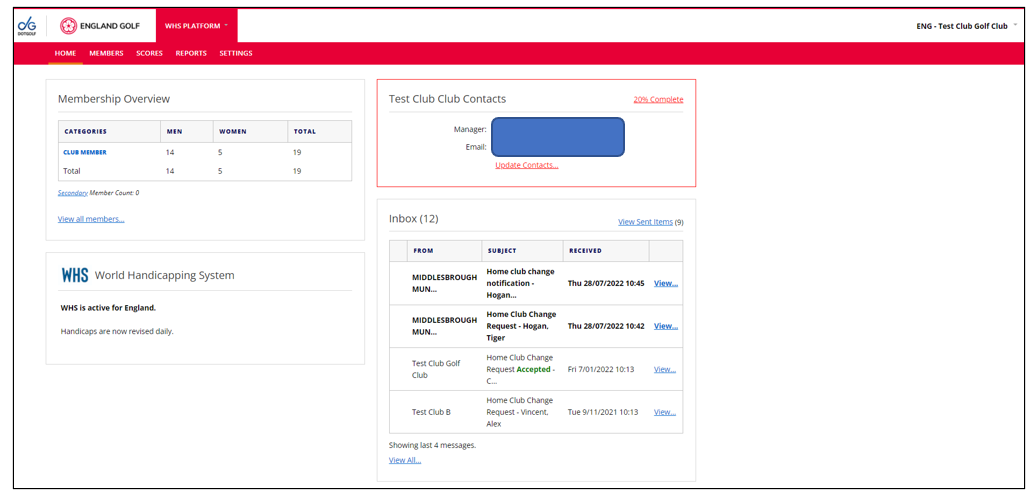
This is your club home page / dashboard showing: club contacts (also available via ‘Settings’), membership overview pie chart, updates regarding WHS and Inbox for all system generated notifications (member movements between clubs and tournament status requests).
‘Scores’
The scores tab allows for scores to be manually recorded (home and away scores – including international scores) – see ‘Entering a score’ for further details.
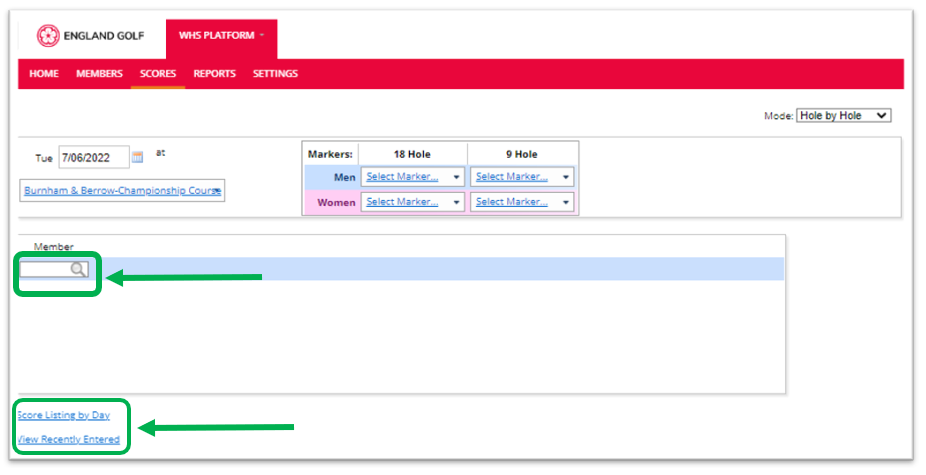
- Listing of scores by date and recently entered is available via the ‘Score Listing by Day’ and ‘View Recently Entered’ links on the scores tab as highlighted above.
‘Members’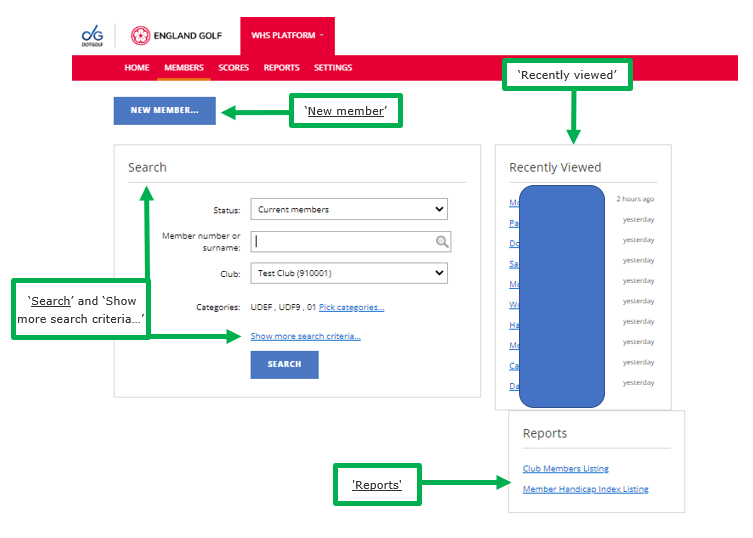
- Functionality to add a new member (see section New Members: Adding a Member for further details).
- Search area initially by membership number (formerly known as CDH id), or by ‘last name, first name’. There is also an advanced search via ‘Show more search criteria…’. (See section Existing Members: Searching for and Updating Members Information).
- Member ‘Recently Viewed’ (for quick access to a recently searched for member record) and ‘Reports’ are available links.
‘Reports’
Two main types of reports are available, Membership & Handicapping:
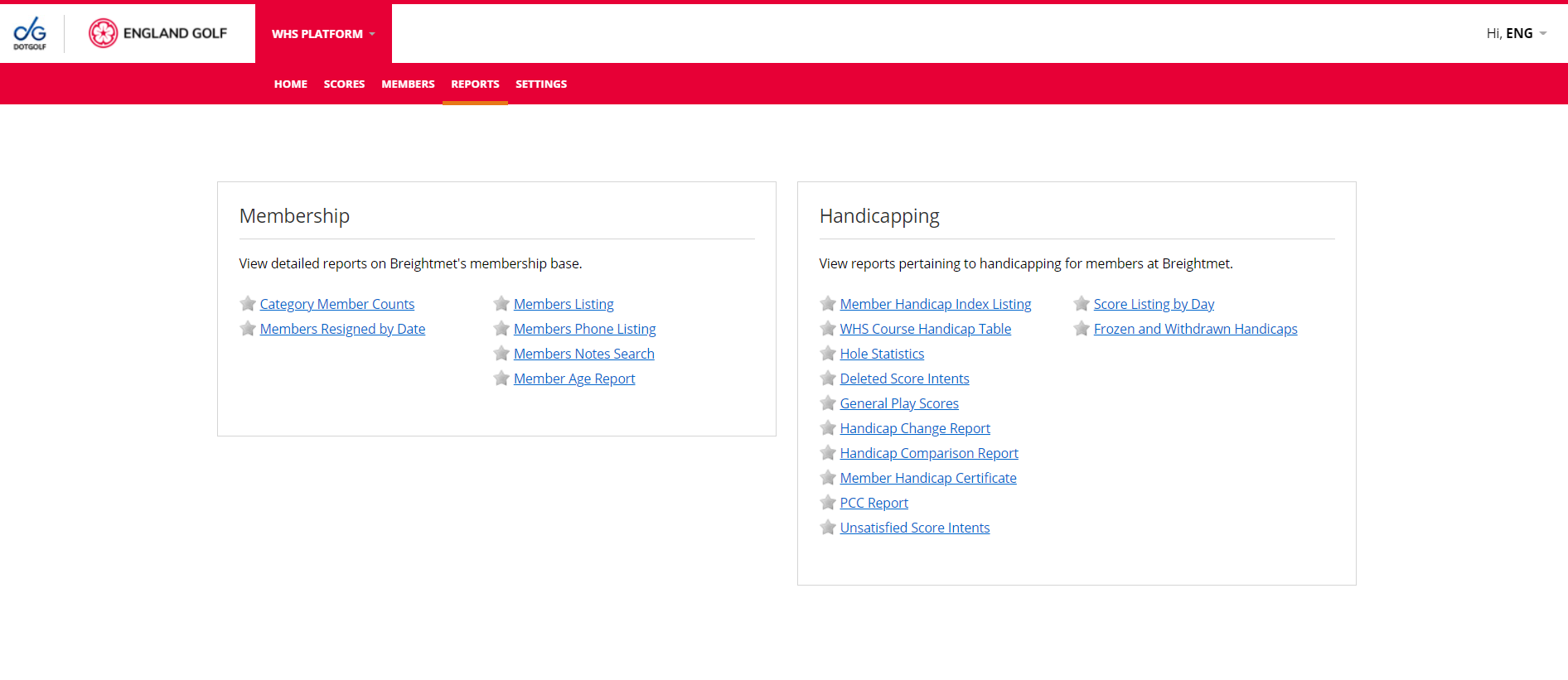
- Comprehensive report functions available from both categories (see ‘Reports’ section for further details).
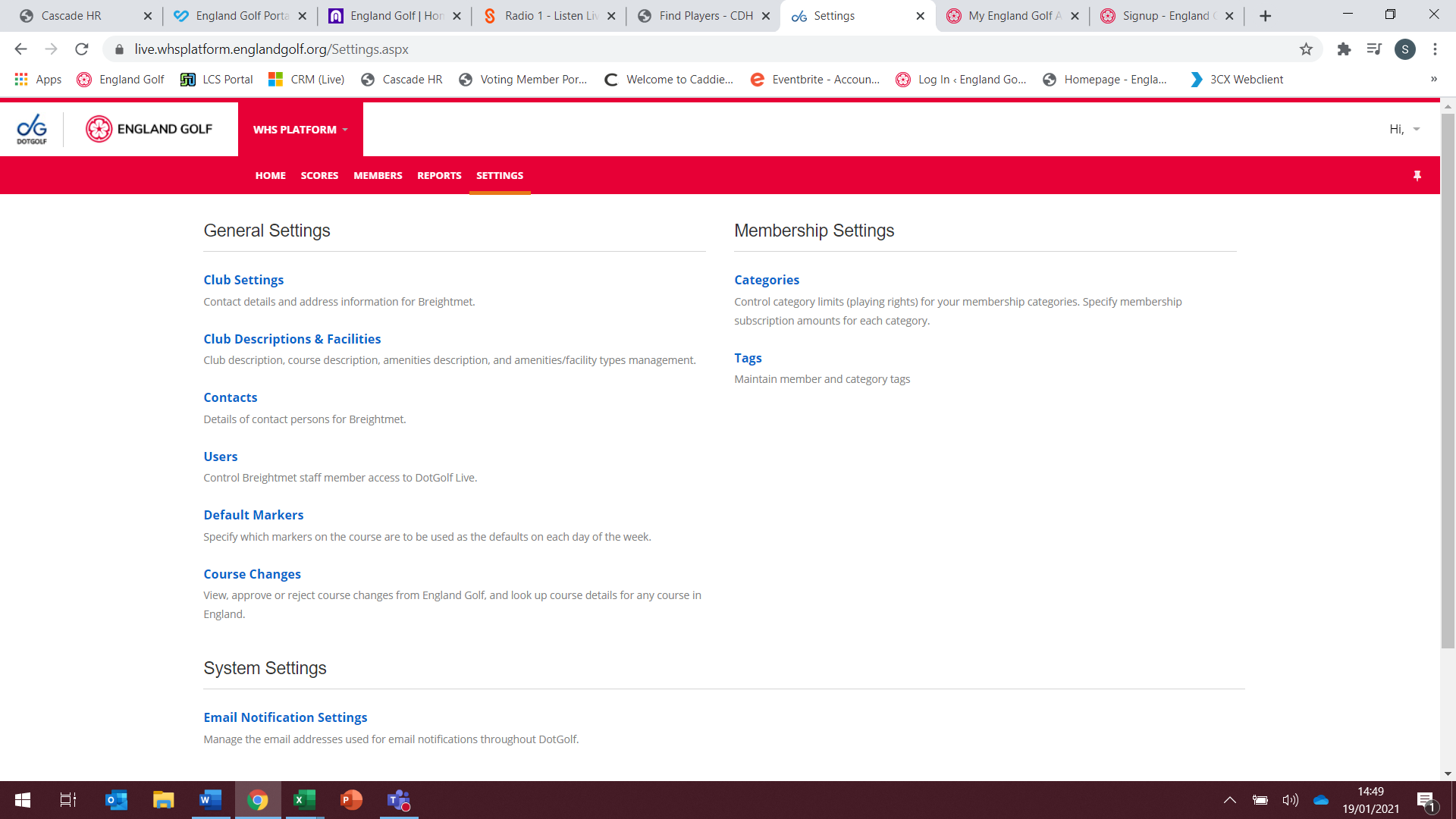
‘Settings’
Access to all setting menus (see ‘Settings’ for further details):
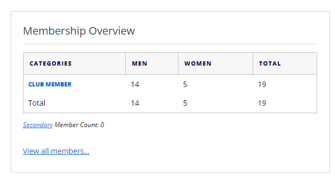
3: Home Page: ‘Membership Overview’
A visual representation of members by gender:
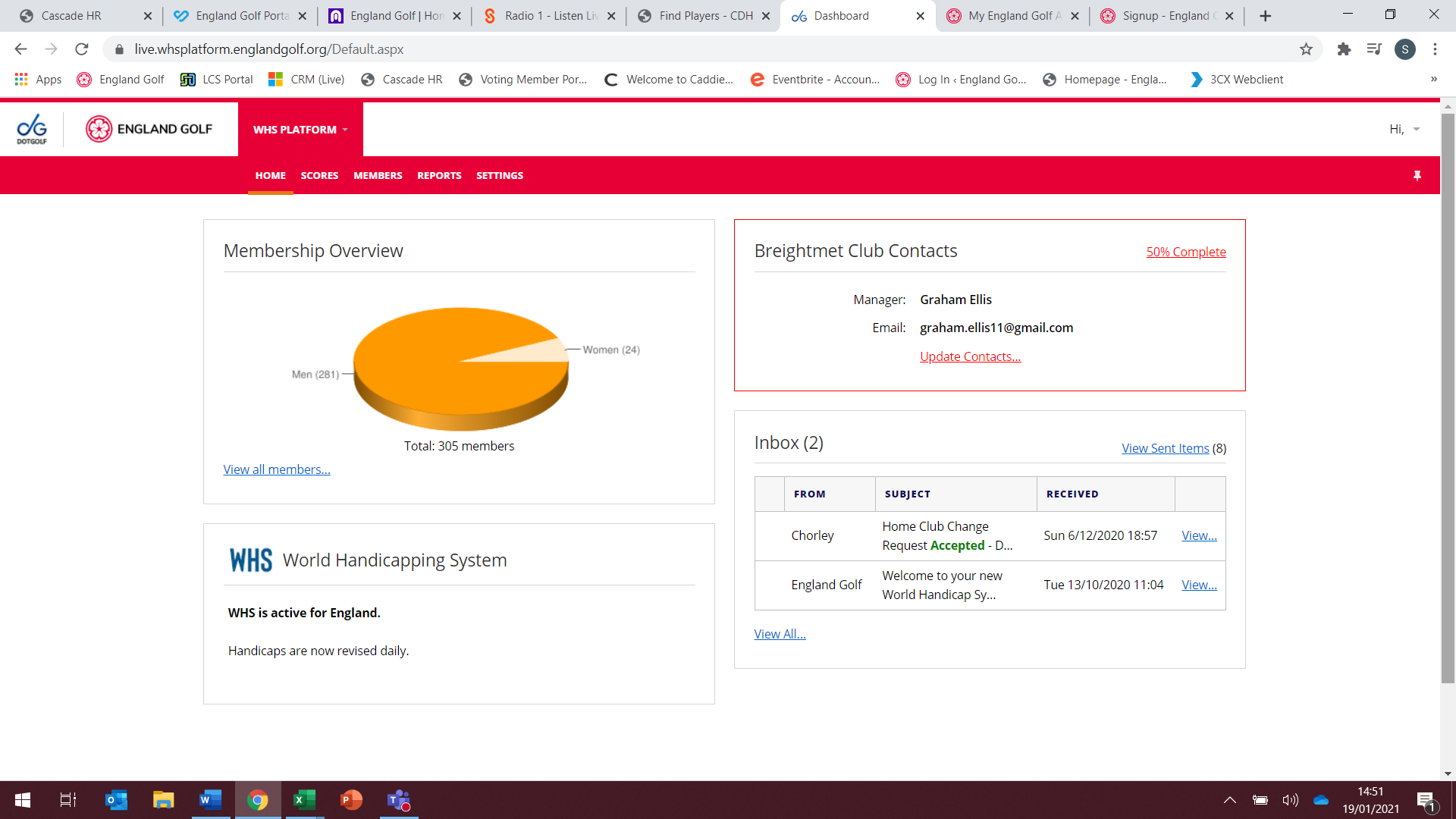
4: Home Page: ‘Club Contacts’
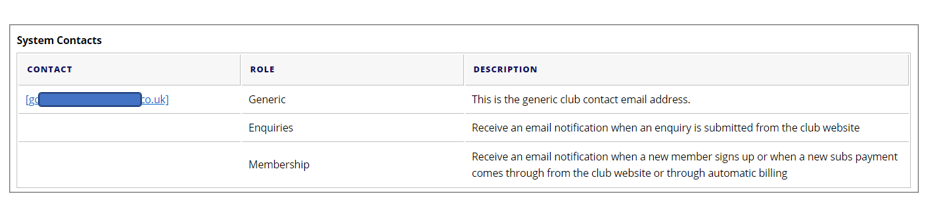
Main contact is displayed with the option to ‘Update Contacts…’ (also available via ‘Settings’ tab):
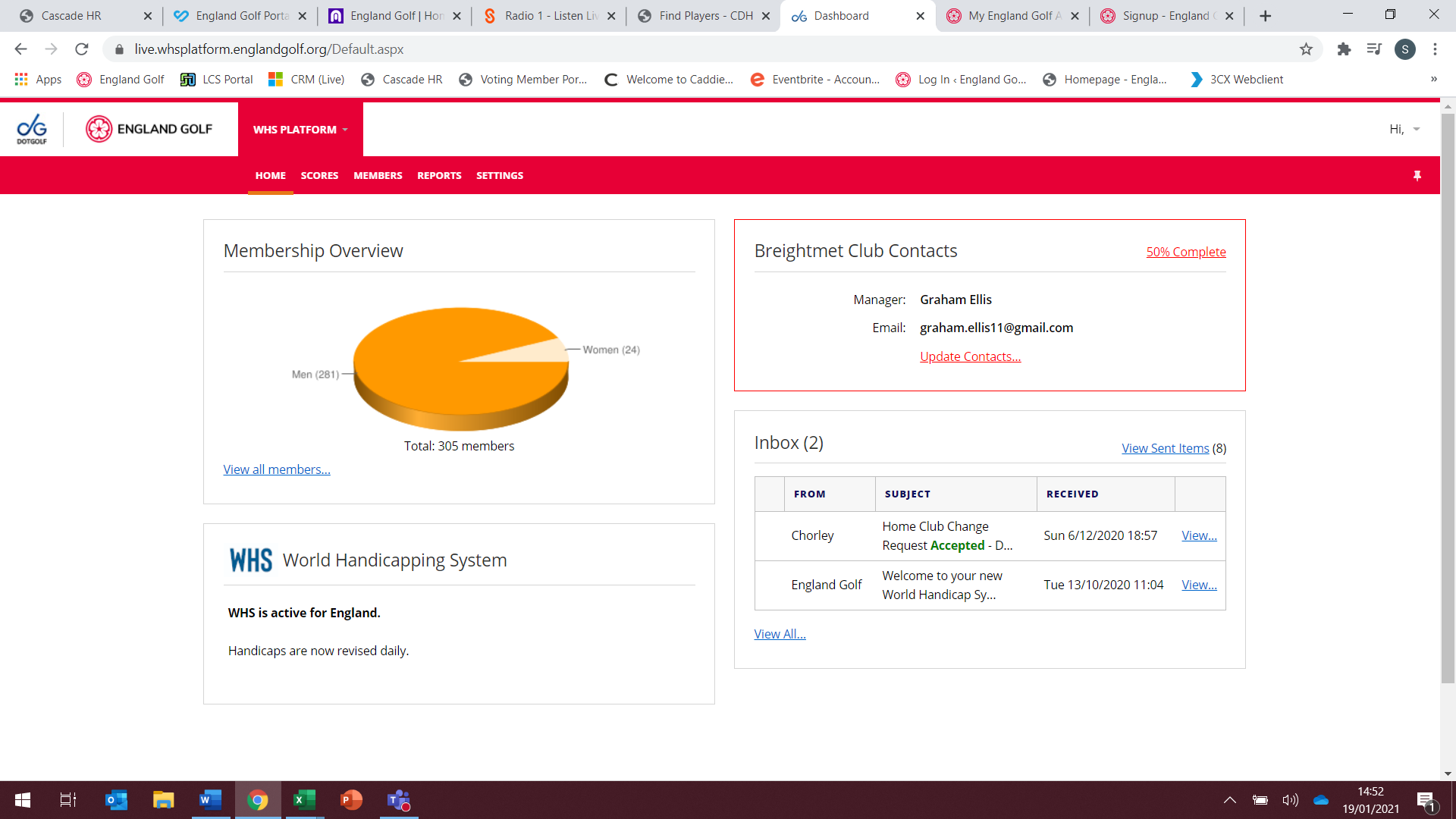
5: Home Page: ‘WHS System Information’
Displaying a WHS system status message from the WHS system:
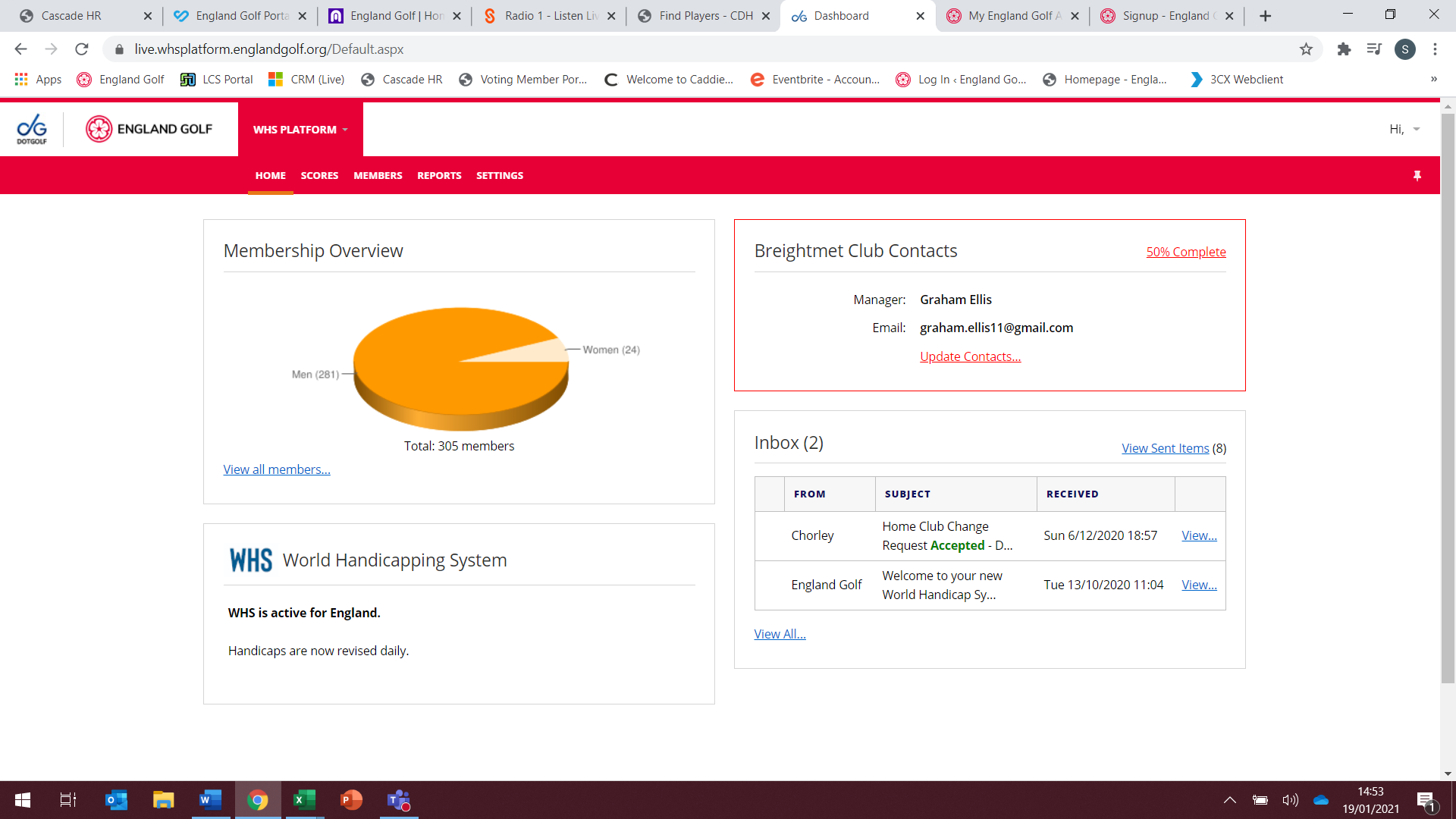
6: Home Page: Club ‘Inbox’
All club/member inbox notifications (e.g. from England Golf, WHS system generated notifications, tournament status requests, or from other clubs) will appear here - Often with messages that need further action. These messages should not be ignored
You can also select ‘View All’ to see complete list of inbox items or ‘View Sent Items’ via the relevant links:
Settings: Overview
What you will see…… the Settings page shows three main categories: ‘General Settings’; ‘Membership Settings’; and ‘System Settings’ with links under each of them to access the relevant settings:
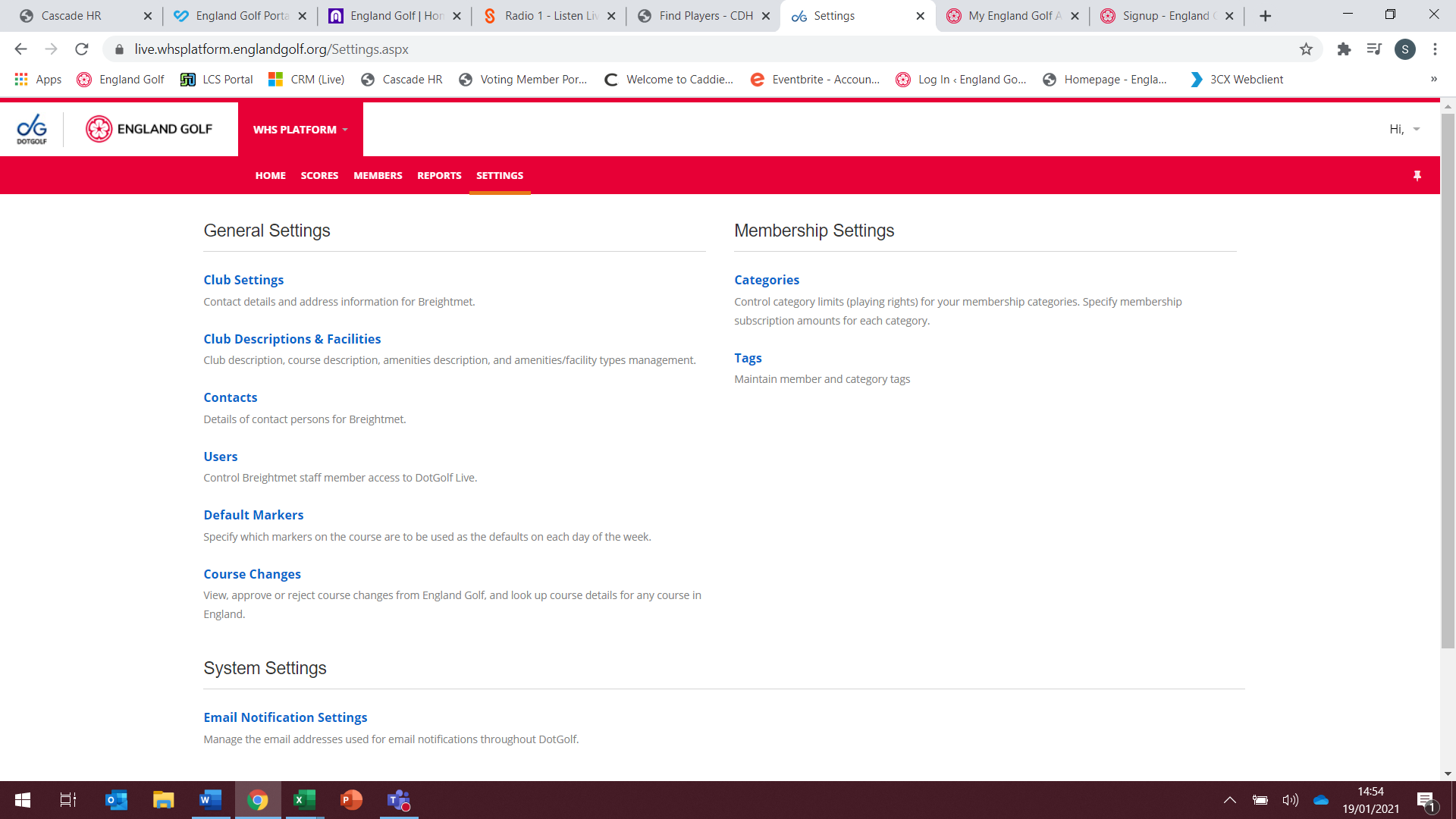
Selecting any of the links on the above main ‘Settings’ menu option will show grey sub-heading tabs ‘System’, ‘Contact’, ‘User Accounts’, ‘Marker Defaults’, and ‘Club Description & Facilities’ for quick access to these options. However, all options can also be accessed via the main ‘Settings’ menu option as highlighted on this screenshot:

Was this article helpful?
That’s Great!
Thank you for your feedback
Sorry! We couldn't be helpful
Thank you for your feedback
Feedback sent
We appreciate your effort and will try to fix the article