To opt in or out of communications you can do so by going into the "Settings" section on the WHS™ platform:
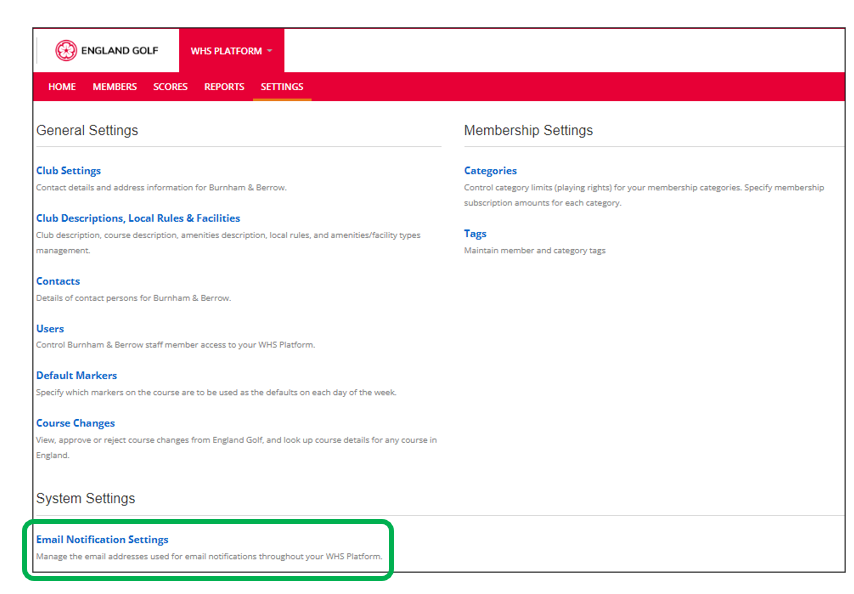
You will see who is already set up to receive communications and of what type.
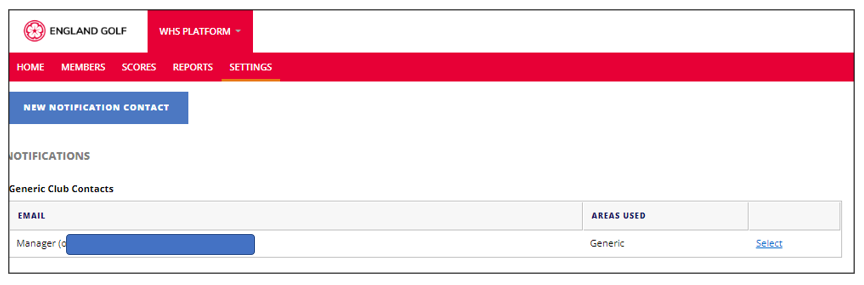
If there are others that need to receive newsletters you can add people as follows:
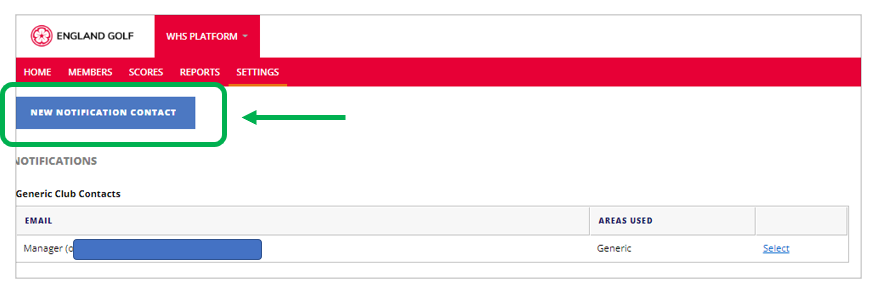
1: Select “New Notification Contact”
2: Select the drop-down menu to select who needs adding
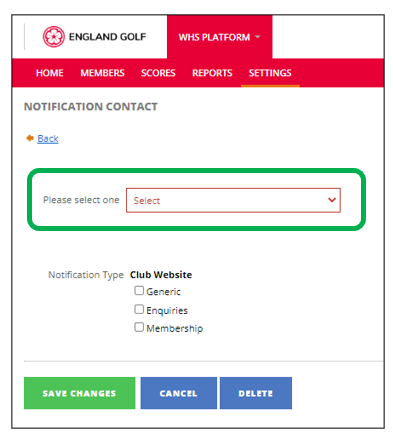
3: When you have selected the relevant person you just highlight what newsletter they receive and click “Save Changes”:
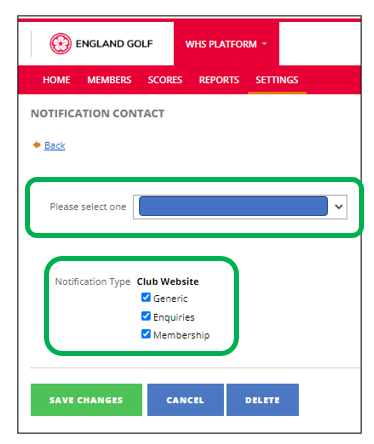
Following is a breakdown of what each notification type covers:
Generic:
This is the generic club contact email address. Receives course change emails and tournament requests. The fall back contact for any system emails that cannot be sent to the other contact types.
Enquiries:
Receive an email notification when an enquiry is submitted from the club website (if any).
Membership:
Receive an email notification when a new member signs up, when a home club change request is received by the club, or when a new subscriptions payment is made.
Was this article helpful?
That’s Great!
Thank you for your feedback
Sorry! We couldn't be helpful
Thank you for your feedback
Feedback sent
We appreciate your effort and will try to fix the article