- Select the ‘Members’ menu option/tab:
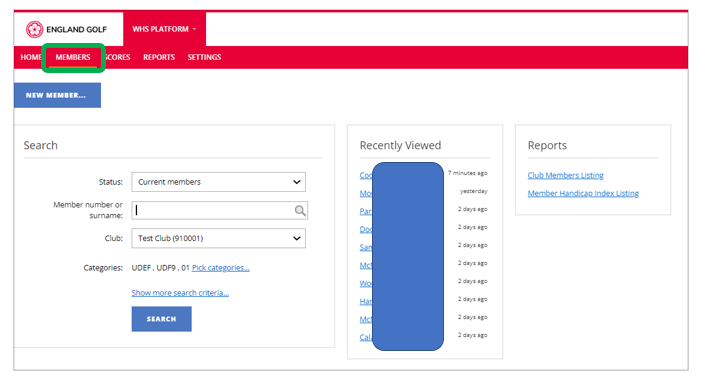
- In the ‘Search’ box:
- Via the ‘Status’ drop-down box select the relevant option for searching: ‘Current members’, ‘Resigned members’ or ‘Current and resigned members’;
- Enter member number (formerly known as CDH id) or surname in the ‘Member number or surname’ field and select relevant member from the dropdown list of results:
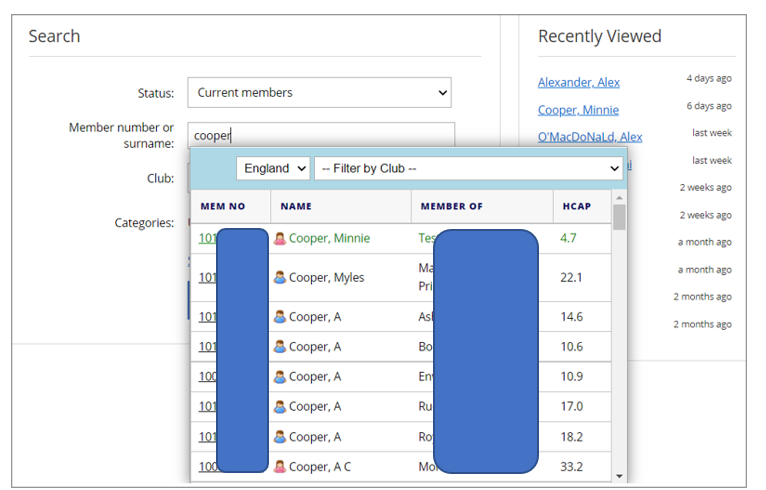
- Select relevant club (default is your club), or ‘All Clubs’ from the ‘Club’ dropdown for a full system wide search.
- Within the member record select the ‘Membership’ tab:
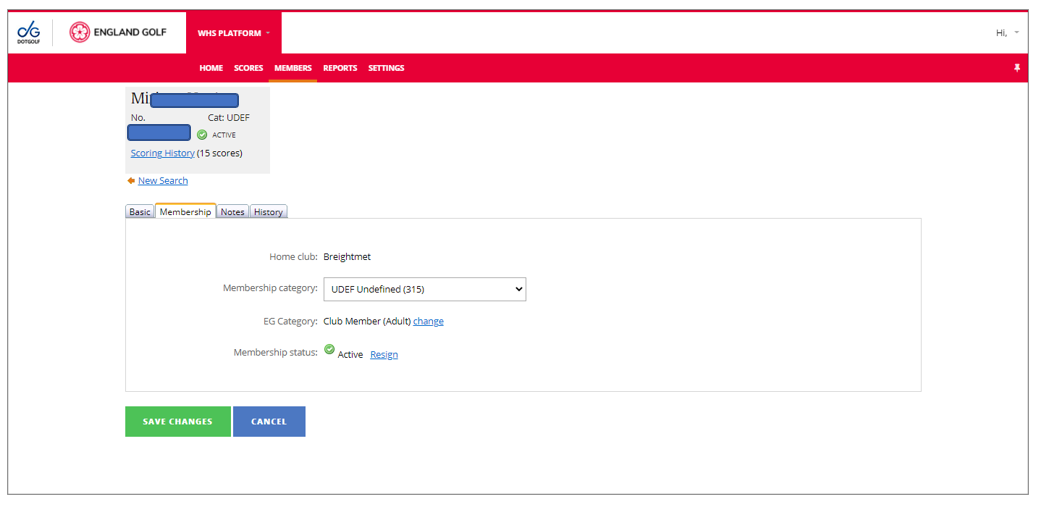
- Select ‘Resign’ under membership status to resign the member (this includes members who may have passed away or for any duplicate records created in error):
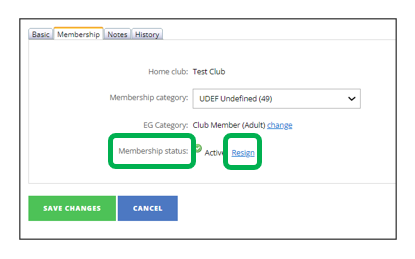
- A message box will appear with various ‘resign’ options to select from.:
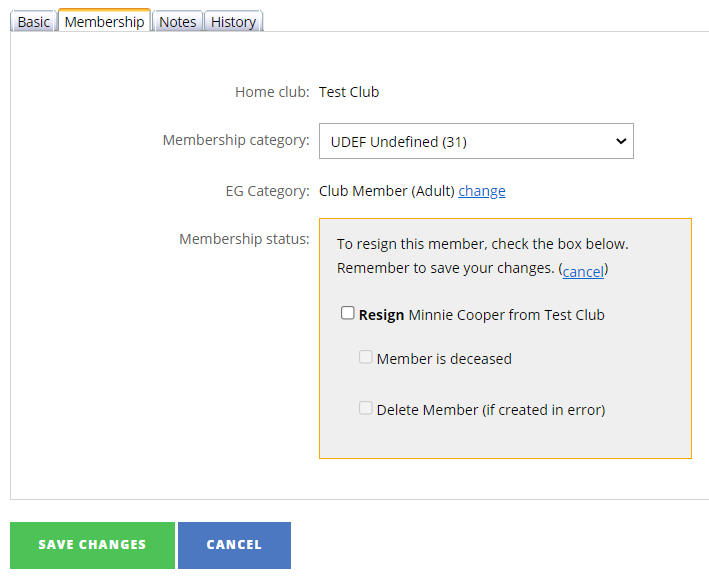
- Tick the ‘Resign’ tick box to resign the member from your club if the member has left or wishes to move clubs. Once the member is resigned, they remain in the system without any attachment to a club.
- Click “Save Changes”
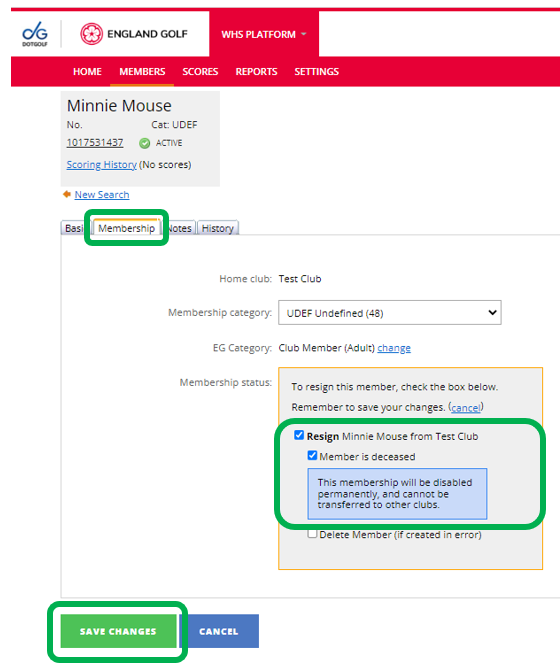
Deceased Member:
- Select the membership tab, click on "resign" and also "member is deceased" before finally clicking on "Save Changes"
- Note: Ensure email address is also removed from this member’s records on both the platform and the club systems to ensure any email communications cannot inadvertently be sent to the member.
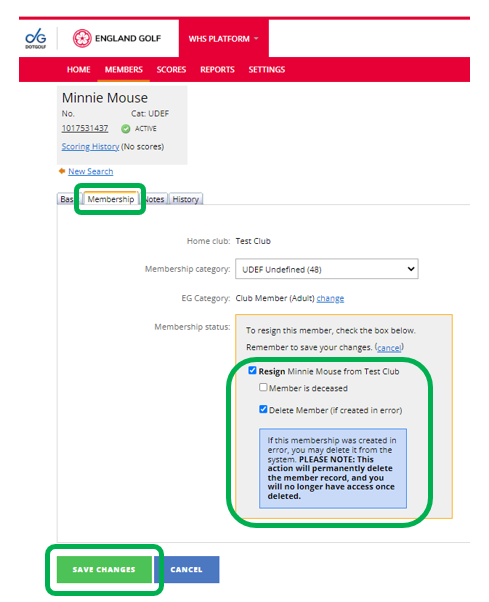
Deleting a member:
- Select the membership tab, click on "resign" and also "Delete Member" before finally clicking on "Save Changes"
- Please check if this record has any score history. If it does then those scores will need adding, manually, to the correct membership number BEFORE deleting the duplicate.
- Also, as this process is permanent triple check it is the correct account BEFORE clicking "Save changes"
Was this article helpful?
That’s Great!
Thank you for your feedback
Sorry! We couldn't be helpful
Thank you for your feedback
Feedback sent
We appreciate your effort and will try to fix the article