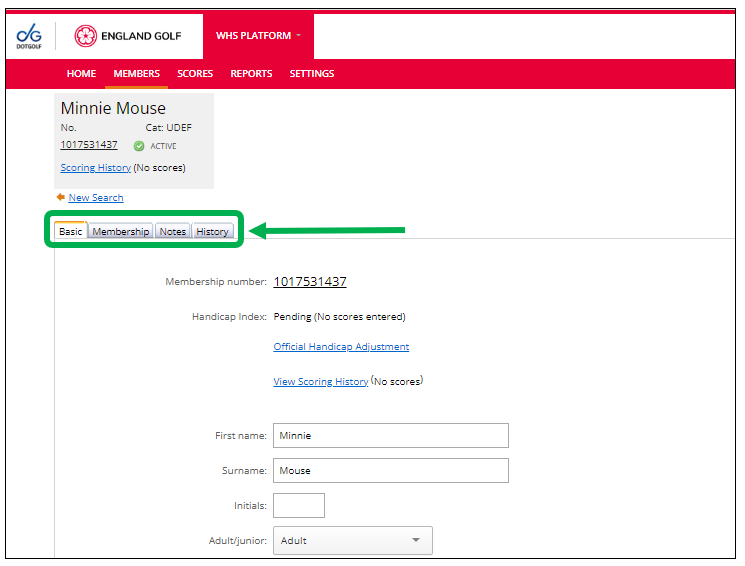
Following the member search, within the member record there are four tabs / menu options which are: Basic; Membership; Notes; and History:
Basic tab
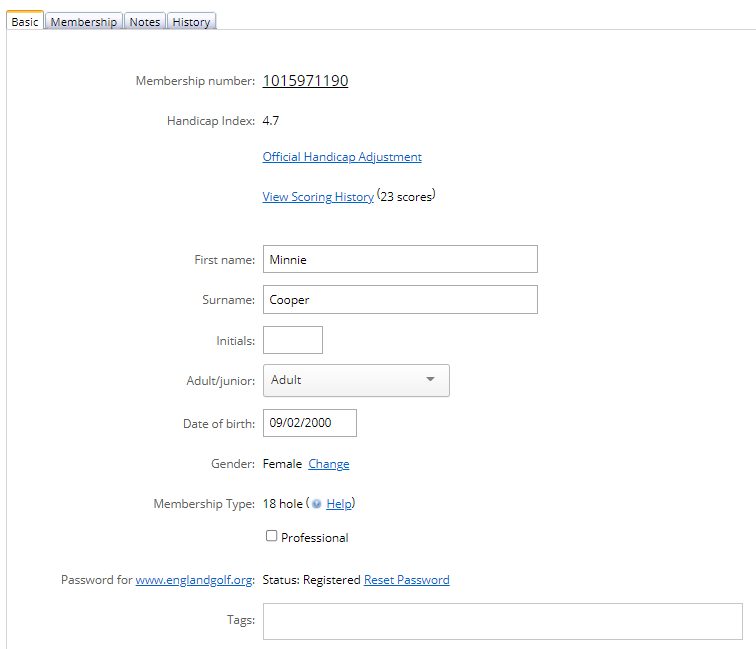
Within the ‘Basic’ tab (as shown above) you can:
- View scoring history;
- Make an official Handicap Index adjustment
- Edit member’s personal details (name, date of birth, address, email address, phone numbers, etc);
- Select the tick box if the member is a Professional;
- If the member requests, you have the ability to reset the member’s password for their My England Golf account/MyEG app.
Additional notes:
- Please ensure the member’s Date of Birth and Email address are accurately recorded as a minimum within the WHS platform, without this information the Handicap Index will not be activated for use and the member will be unable to access their WHS My England Golf member account or MyEG app and any of their affiliation benefits.
- Membership Type should read - 18 hole.
- If ‘Gender’ is incorrect for the member select ‘Change’ next to the incorrect gender type and this will generate a change request process with the WHS technical support team for actioning (note: you will be contacted as part of the process).
- If any changes are made please select ‘Save Changes’ at the bottom of the page (or ‘Cancel’ to exit without saving):
Resetting password
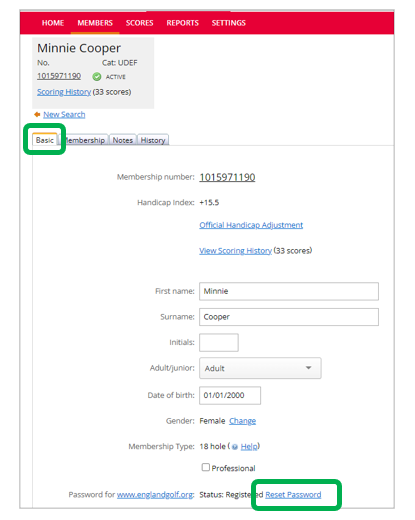
If the member requests it, you have the ability to reset the member’s password for their My England Golf account/MyEG app as follows:
- Select ‘Reset Password’ within the member’s Basic tab:
- A text box will appear with a randomly generated password:
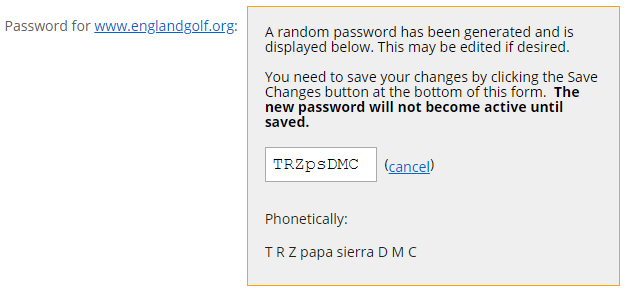
- Selecting ‘(cancel)’ within the above box will cancel the password reset and return to the original member basic information page with password unchanged.
- If you want to keep the randomly generated password select ‘Save Changes’ at the bottom of the page:
- If you want to enter a different password, for example one chosen by the member, you can overtype the random password with the alternative password and select ‘Save Changes’ at the bottom of the page:
Video Support: Existing Members: Resetting password
To support you further you can view THIS VIDEO.
Membership tab
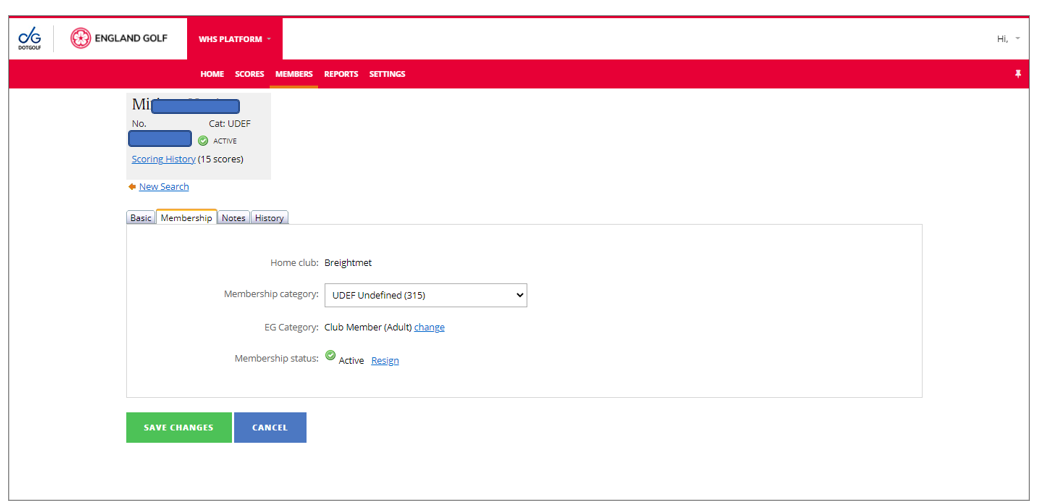
Within the ‘Membership’ tab (as shown above) you can:
- Edit Membership Category: if none are set up, members will default to ‘UDEF (Undefined)’ – see ‘Adding A Club Membership Category’ for further information;
- View EG Category – this will always be ‘Club Member’ (Adult or Junior);
- Resign a Member (this includes members who may have passed away) – see ‘Resigning A Member’ for further information.
Note: if any changes are made select ‘Save Changes’ at the bottom of the page (or ‘Cancel’ to exit without saving):
Notes tab
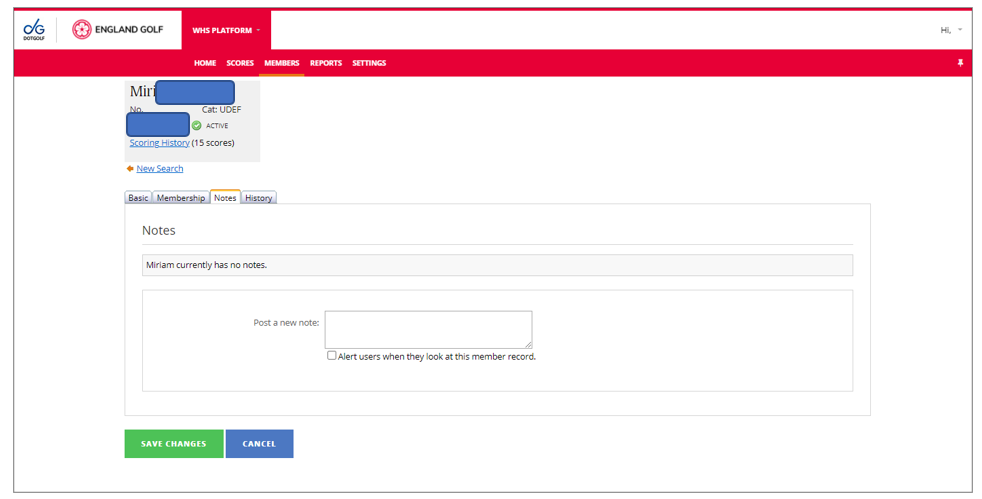
Within the ‘Notes’ tab (as shown above) you can:
- View membership notes;
- Delete a membership note;
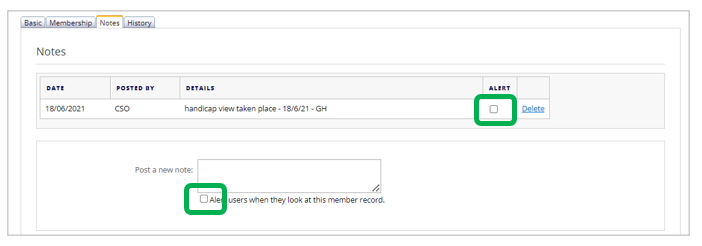
- Add a membership note – which you can make visible to other users at the club by ticking ‘Alert’ tick box if needed:
 Note: if any changes are made select ‘Save Changes’ at the bottom of the page (or ‘Cancel’ to exit without saving):
History tab
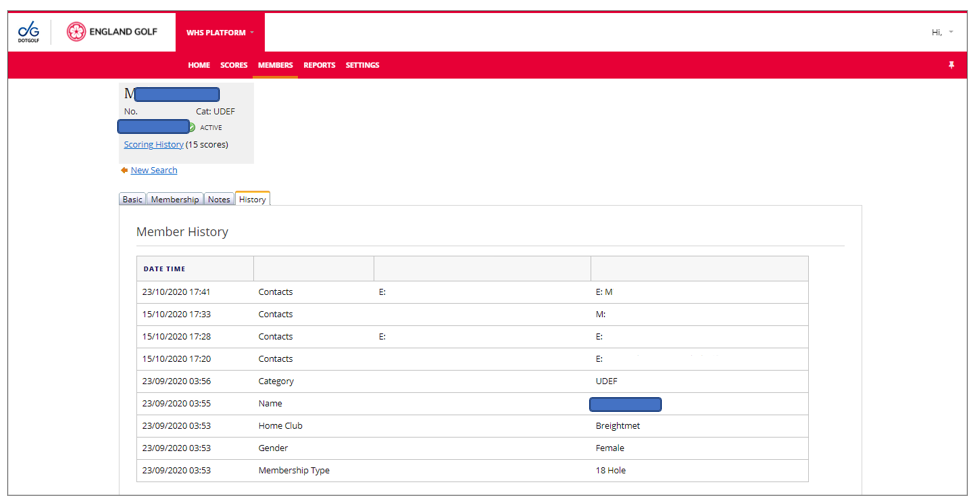
Within the ‘History’ tab (as shown above) you can view audit history for changes to the member’s profile – and use the tick box ‘Include User (if available)’ to show the user or system responsible for the change.
Was this article helpful?
That’s Great!
Thank you for your feedback
Sorry! We couldn't be helpful
Thank you for your feedback
Feedback sent
We appreciate your effort and will try to fix the article