Note: check all your tee sets are set up via 'Default markers', only then will golfers be able to submit a scorecard for them via the MyEG app.
- Select the ‘Settings’ menu option/tab.
- Under ‘General Settings’, select ‘Default Markers’.
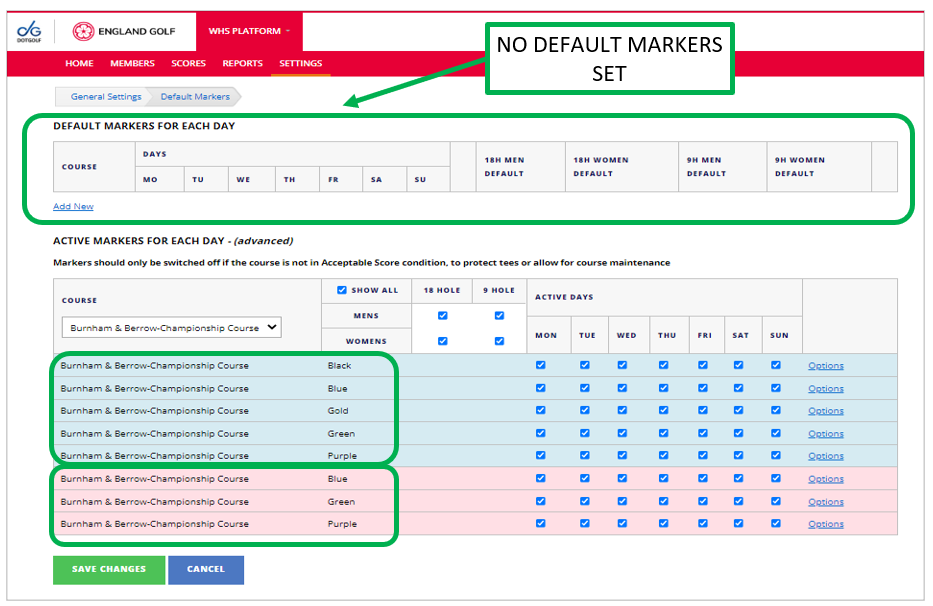
- Note: Ignore the top section ‘Default Markers for each day’ as this is NOT live and does not control the active markers (i.e. it does not select which markers are available for app scorecards download).
Go to "Settings" and select "Default Markers"
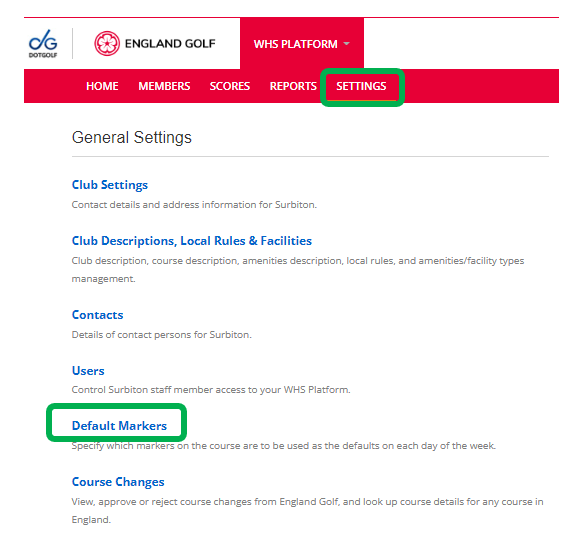
Default Markers
Default markers specify which tee set is used when a score penalty is applied. If default markers aren't set up then score penalties are applied against the marker the player chooses when setting up the score intent in the MyEG app.
Please see these 2 examples to understand both scenarios.
Example 1:
In this example the default markers will be “Gold” for men and “Green” for women - Mon - Sun. Any scores that are not sent for submission will default to these markers.
You can set them up to suit whatever you need throughout the week. As an example:
- Weekday
- Weekends
- Alternative days
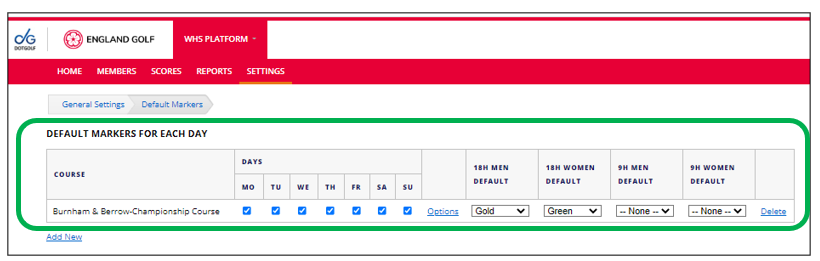
It is important to know that default markers is not live and therefore it should not be used as a tool for making markers active or inactive within the app. See the section further down named “Active Markers for Each Day" to see how you manage them correctly.
Note: If a round is created through your ISV it will not link with WHS so you need to make sure the
settings are the same within each platform.
Example 2:
In this example the default markers will be whatever the player chooses when creating the scorecard in the MyEG app. This is because the default markers are not in place at the top of the page so it needs to know what to look at as an alternative.
Also, if you switch a marker off you need to make sure you also do that within your ISV. If you don't members can still select that marker and submit scores.
Active Markers for Each Day:
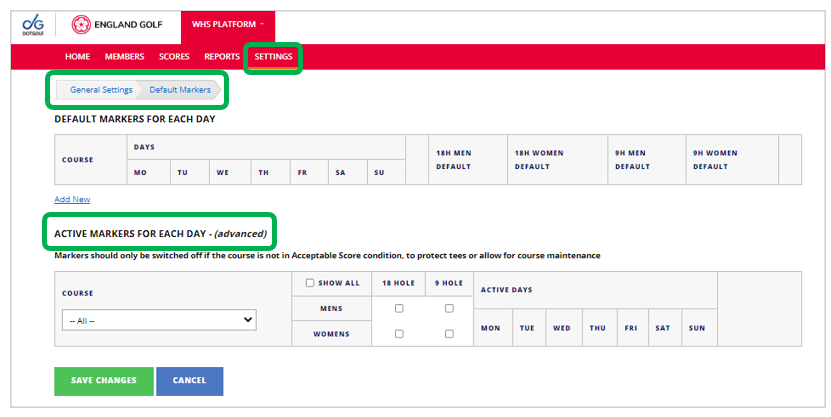
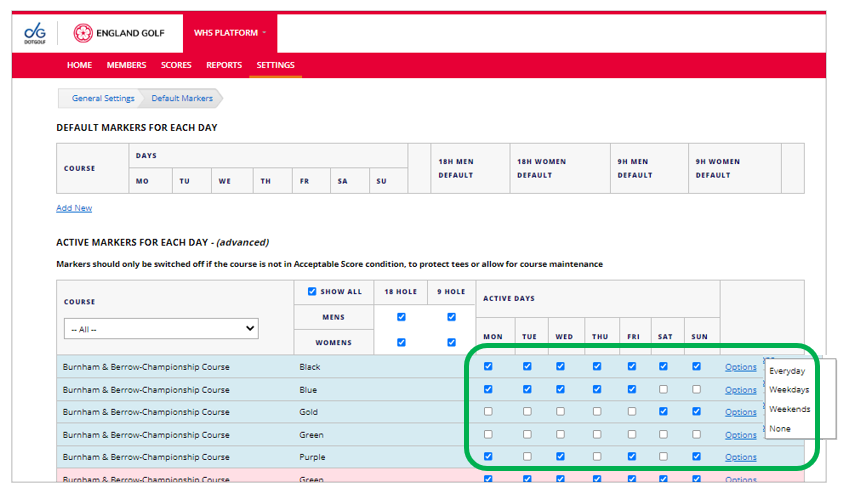
1. Select by Men's or Women's, 18H or 9H, using check boxes to bring the list of relevant active markers to the screen, or check Show All to bring the full list of active markers. Note that men's markers are shaded light blue and women's markers a light red.
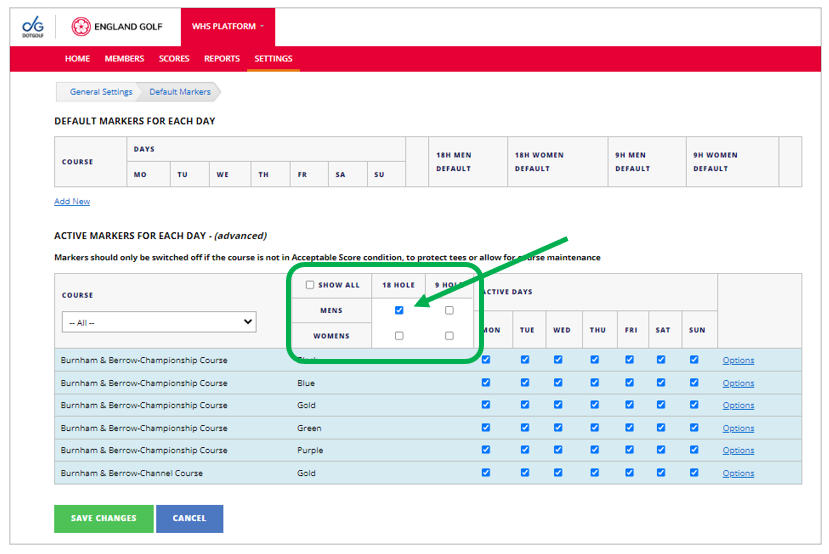
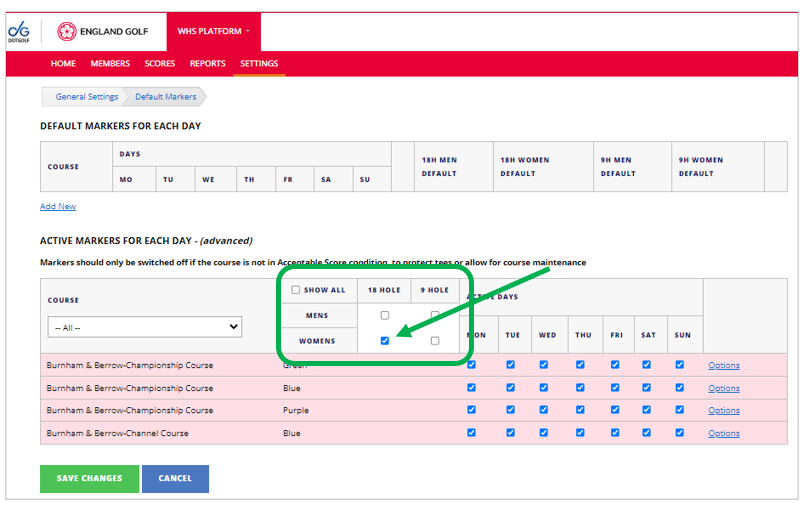
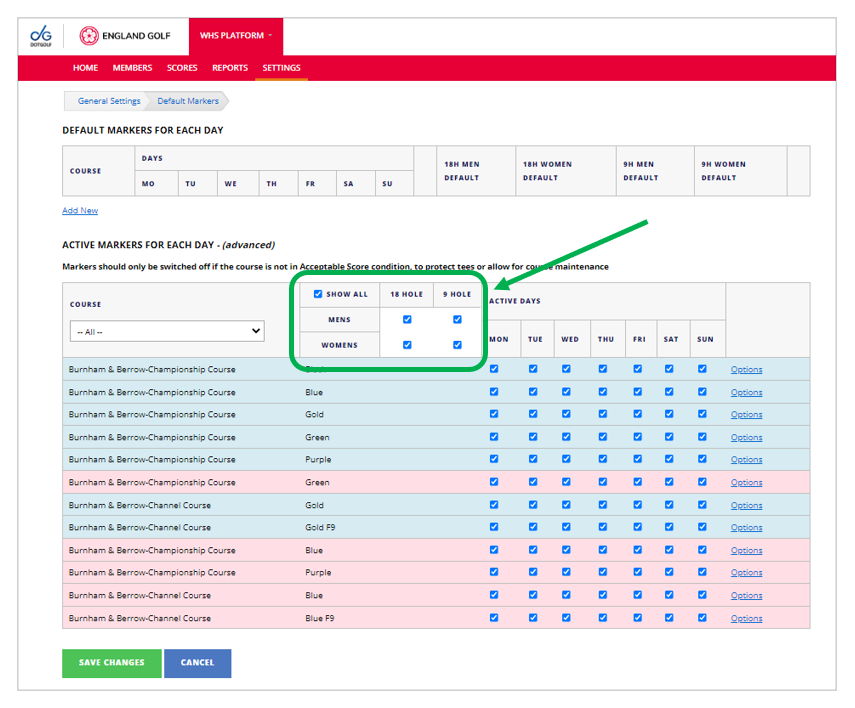
2. Note all markers are set to be active every day as default unless they are unchecked.
3. Under Options there are four standard selections – Everyday (this is the default), Weekdays only, Weekends only, and None (never active). Additionally these settings can be ignored and each marker can be checked or unchecked by day to give the desired availability. Note, to remove a marker from being available for app scorecard download permanently or for an extended period select None. This might be useful for temporary courses e.g., Winter specific layouts.
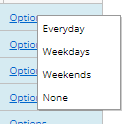
4. The first five lines below show the four options selected, the fifth line is the self-select for M,W,F only.
Further support is available by viewing THIS VIDEO
Was this article helpful?
That’s Great!
Thank you for your feedback
Sorry! We couldn't be helpful
Thank you for your feedback
Feedback sent
We appreciate your effort and will try to fix the article