Note: If you have multiple rounds when entering international scores it is important to record the oldest round by time and date.
- Select the ‘Scores’ menu option/tab.
- On the ‘Score Entry’ screen, the date will default to today’s date but can be changed by clicking on the calendar icon to bring up a calendar for you to select the correct date for the score:
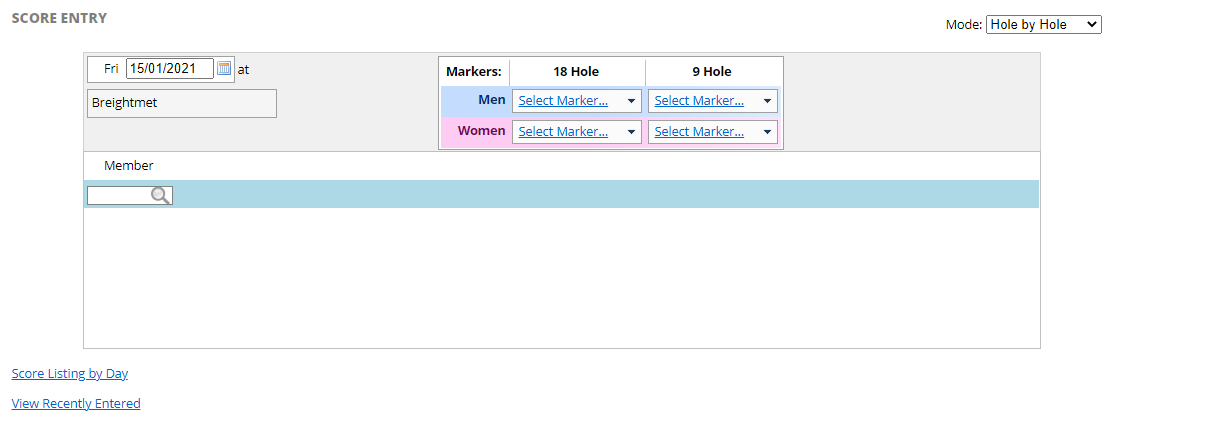
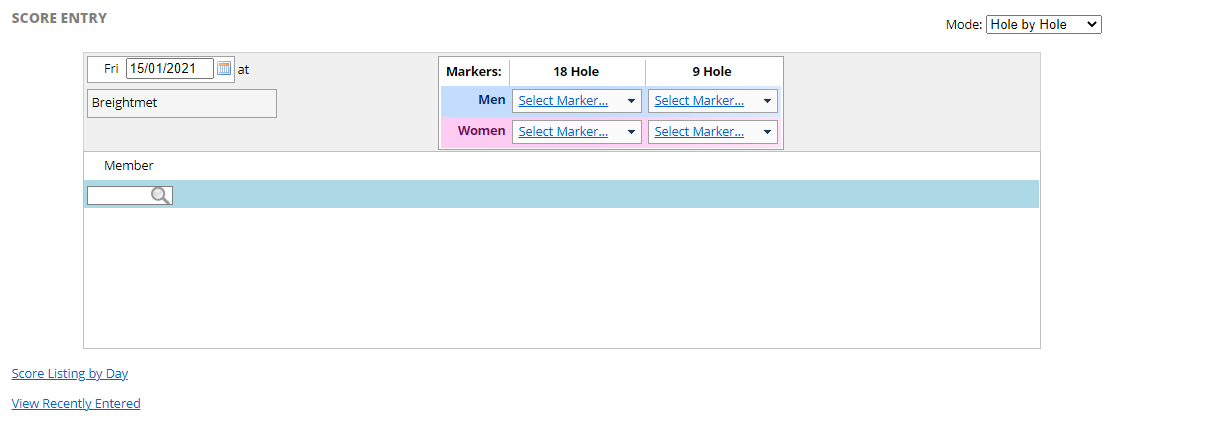
- In ‘Member’ search field, enter membership number or surname:
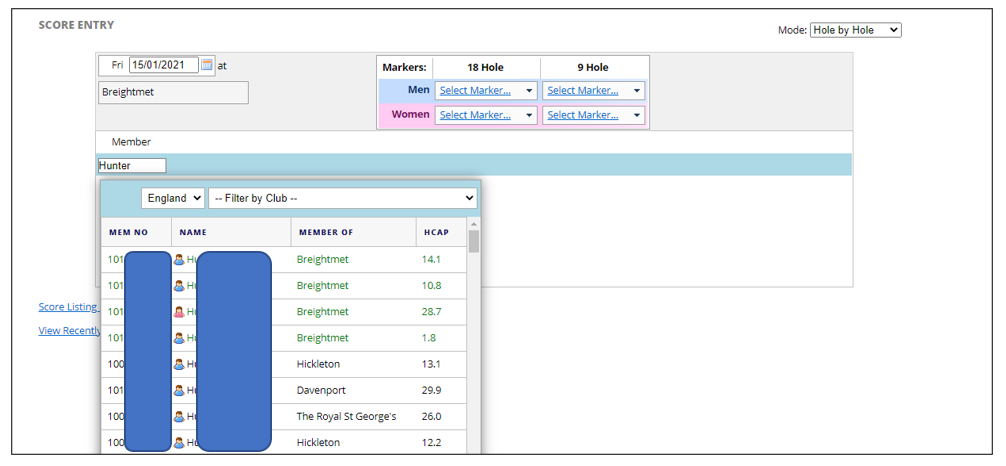
- Select the required member record from the list by clicking on it:
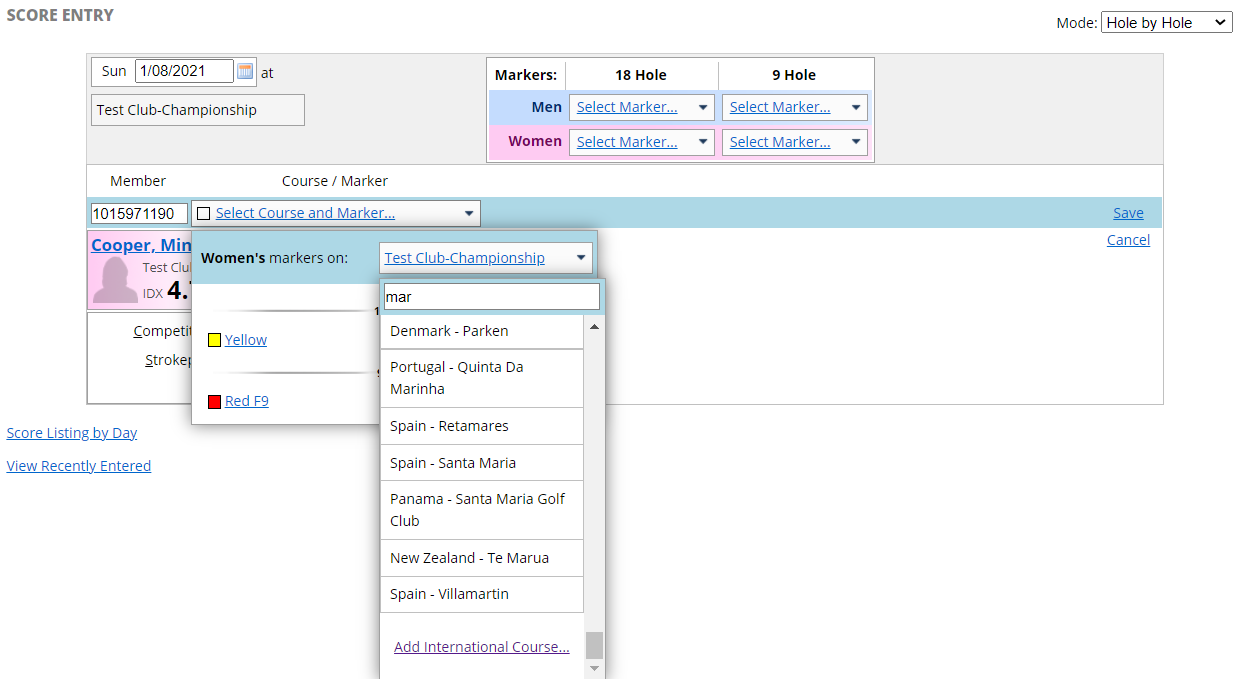
- Select the arrow in the dropdown list for ‘markers’ (Note: the ‘Select Course and Marker’ drop down list will default to those set up for your club):
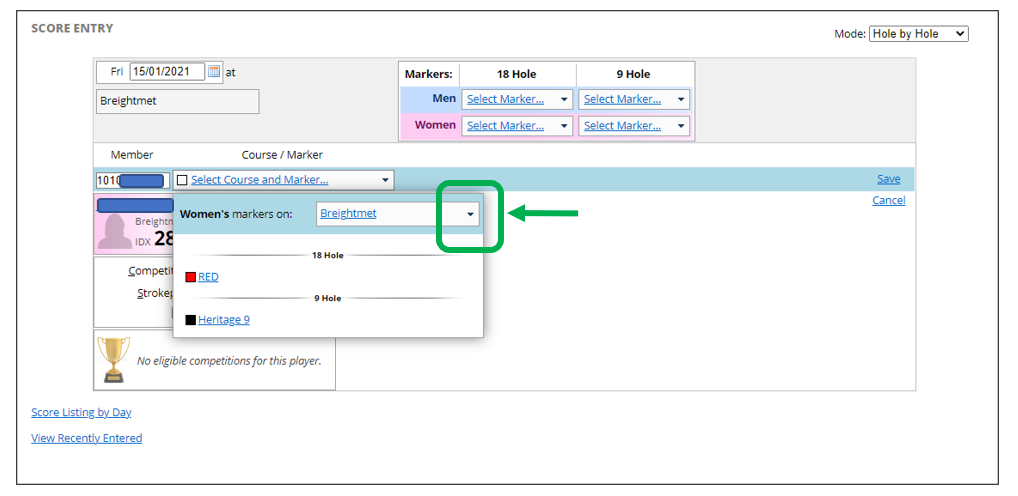
- Courses in England appear first in the list, followed by courses from overseas, so you will need to scroll the dropdown list to locate the required course.
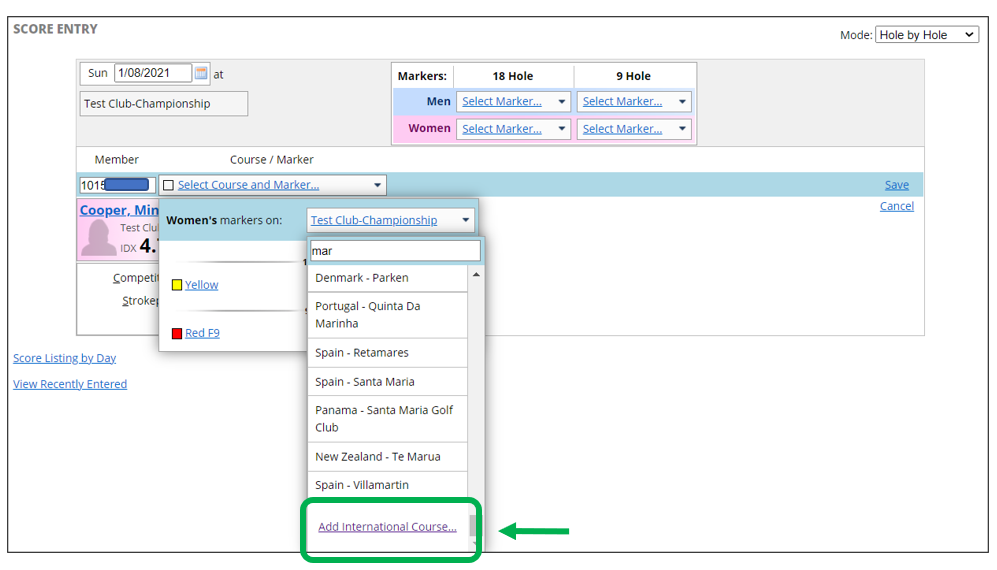
- If the required course is not in the dropdown list and is a course from outside England it will need to be added as an overseas course via the ‘Add International Course’ option:
- Within the ‘Create/Edit International Course’ box, select the country from the dropdown list and enter the information in the entry fields:
- Country round was played in
- Course Name
- Marker Name (Tee Name)
- Gender (this will default to the gender of the member whose score is being added)
- 9/18 hole
- Course Rating*
- Slope Rating*
- Course Par*
*All the above detail can be obtained from the USGA Course Rating™ database (available HERE), from the host club website, or directly from the scorecard.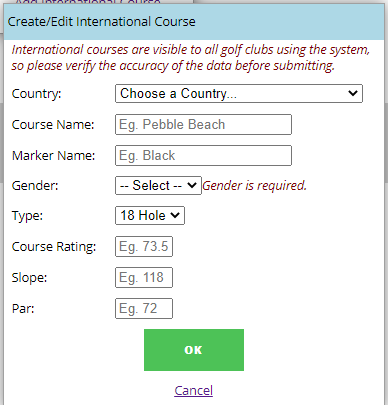
- Click OK on the ‘Create/Edit International Course’ box.
- Add Adjusted Gross Score:
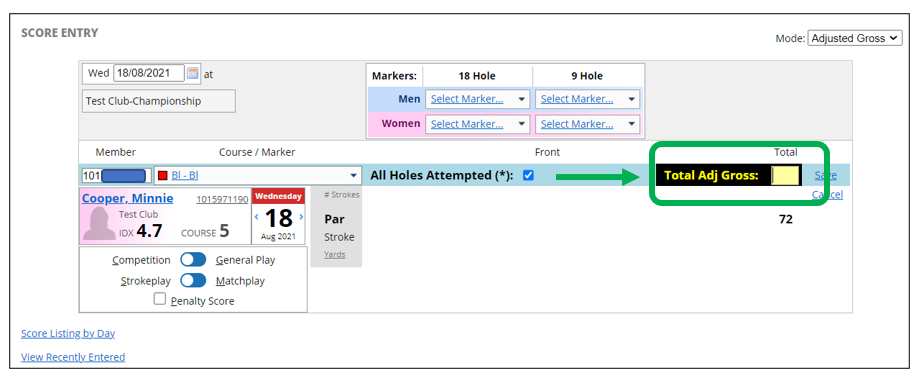
Click ‘Save’ to save the score and add it to the members’ scoring record.
Was this article helpful?
That’s Great!
Thank you for your feedback
Sorry! We couldn't be helpful
Thank you for your feedback
Feedback sent
We appreciate your effort and will try to fix the article