
- Select the ‘Settings’ menu option/tab.
- Select ‘Users’ to display current user accounts set up as per the screenshot above (and to ‘Show deleted or expired users’ click the tick box as shown above existing users).
- To add a new user click ‘Create a New User’ Note: to edit an existing user account jump to step 7 below.
- Complete all fields for the new user:
- Create a separate User ID and Password UNDER NO CIRCUMSTANCES SHOULD A USER ID AND PASSWORD BE THE SAME OR SHARED WITH OTHERS.
- Enter short name and full name in relevant fields;
- Add Email Address;
- Set ‘Account Expiry’ (default of ‘Never Expires’ is recommended);
- Set Course Access if applicable (default of ‘All Courses’ is recommended).
NOTE: A link is set to the new user so they can set up their own password
Select relevant ‘Permissions’ according to the user’s role within the club:
Click the ‘Save Changes’ button at the bottom of the page (or ‘Cancel’ to exit without saving).
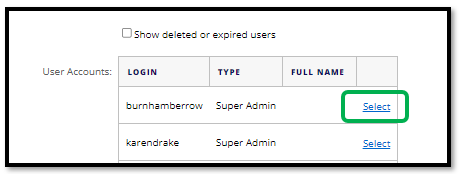
To edit an existing user click ‘Select’ next to their details:
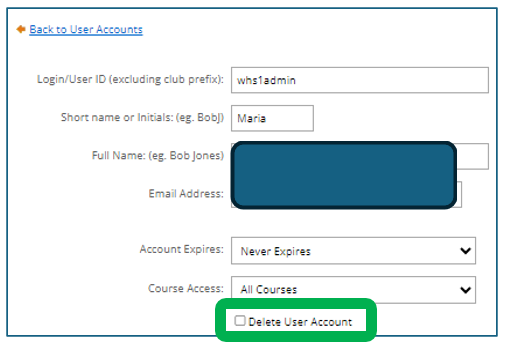
Edit the relevant information or tick the box ‘Delete User Account’ (as highlighted below) if access is no longer required for the user:
Was this article helpful?
That’s Great!
Thank you for your feedback
Sorry! We couldn't be helpful
Thank you for your feedback
Feedback sent
We appreciate your effort and will try to fix the article